The ImGuiSamples Plugin demonstrates how to integrate the Dear ImGui library with UnigineEditor, and how to use the Editor's API to build advanced custom tools (create new buttons, menus, widgets and more) for various development tasks. The sample is also available on the Add-On Store as ImGuiSamples Plugin.
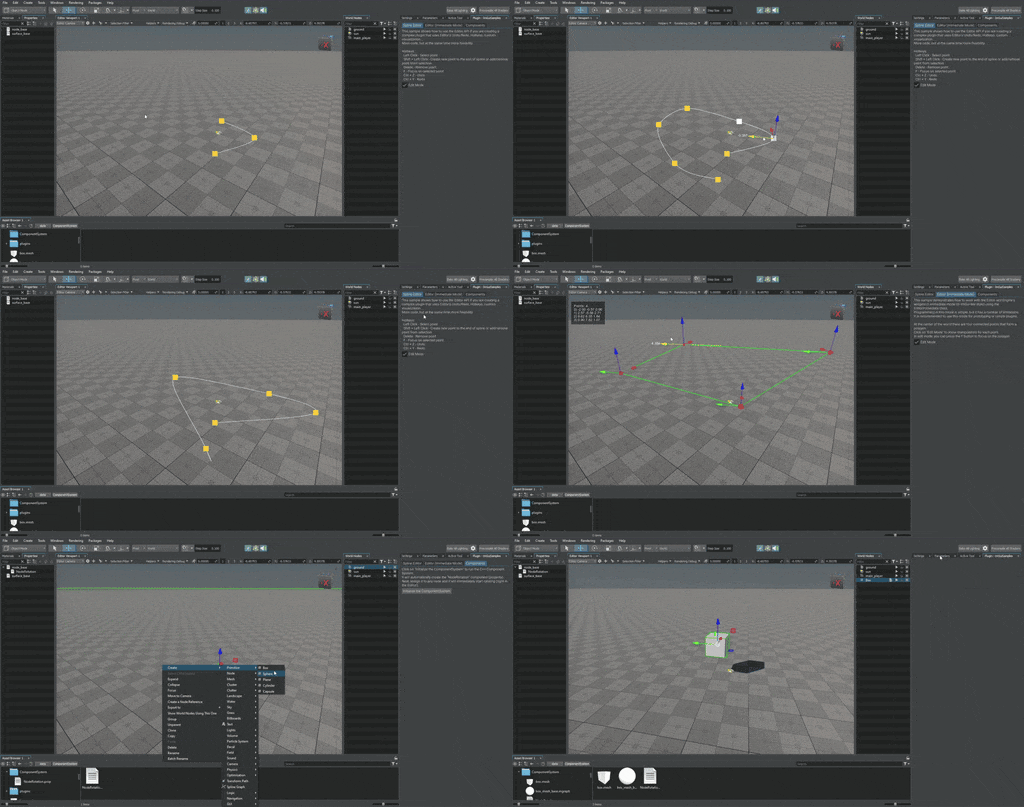
The plugin adds a custom window to the UnigineEditor with three tabs, each showcasing a different sample:
This sample demonstrates how to use the Editor's Undo/Redo system via the API, work with hotkeys, and implement custom visualization, using spline editing.
When Edit Mode is enabled, the spline editor becomes active. Available actions (remappable via Windows → Settings → Hotkeys):
- LMB - Select a point
- Shift + LMB - Add/remove a point or append to the spline
- Del - Remove selected point
- F - Focus camera on the selected point
- Ctrl + Z - Undo
- Ctrl + Y - Redo.
This sample demonstrates how to use the Editor and Engine widgets in immediate mode (ImGui-like style) using the EditorImmediate class. It's simple to use, but has a number of limitations. Best for prototypes and simple tools.
In the sample, four connected points form a polygon at the center of the world. Click Edit Mode to:
- Display manipulators for each point
- Move points using the manipulators
- Use the F key to focus the camera on the polygon.
The current position of each point (X, Y, Z) is updated each frame in the widget at the top-left corner of the viewport.
This sample shows how to work with C++ components inside the Editor.
- Click Initialize the ComponentSystem to register and activate the
NodeRotationcomponent (a property written in C++). - Assign the component to any node. It starts rotating immediately.
- Control rotation speed using three sliders for X, Y, Z axes.
- UNIGINE SDK Browser (latest version)
- UNIGINE SDK Community or Engineering edition (Sim upgrade supported)
- Visual Studio 2022 (recommended)
To get started with the ImGuiSamples Plugin:
-
Clone or download the sample.
-
Open SDK Browser and make sure you have the latest version.
-
Add the sample project to SDK Browser:
-
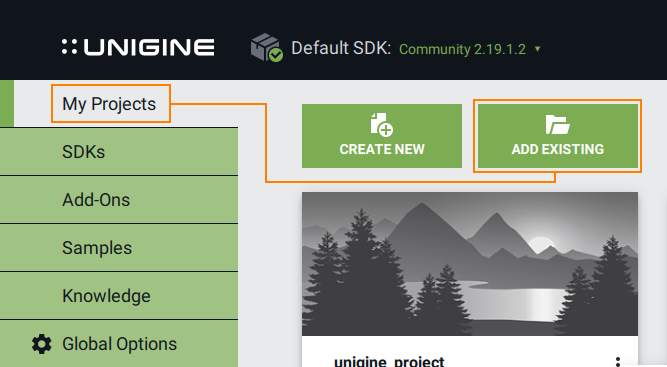
Go to the My Projects tab.
-
Click Add Existing, select the
.projectfile from the cloned folder (matching your OS -*_win_*/*_lin_*, edition, precision), and click Import Project.
-
-
Repair the project:
- After importing, you'll see a Repair warning - this is expected, as only essential files are stored in the Git repository. SDK Browser will restore the rest.
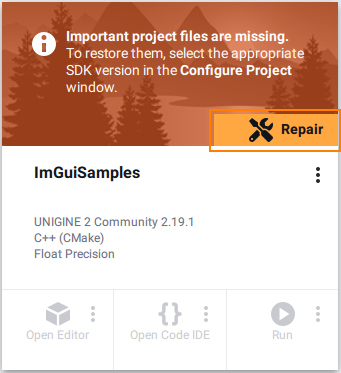
- Click Repair and then Configure Project.
-
Install required dependencies:
- The plugin uses the Qt 6.5.3 framework (UnigineEditor extensions require Qt). Install Qt 6.5.3
and make it discoverable by CMake.
CMakeLists.txtsearches for it in this order:%UNIGINE_QTALLROOT%\v6.5.3(environment variableUNIGINE_QTALLROOT), then%UNIGINE_3RDPARTY_DIR%\Qt-All\v6.5.3(environment variableUNIGINE_3RDPARTY_DIR), then- the CMake package search path (a system Qt 6.5.3, or pass
-DCMAKE_PREFIX_PATH=<path-to-Qt-6.5.3>).
- Set one of those environment variables to your Qt location (so that
<value>\v6.5.3exists), or pass-DCMAKE_PREFIX_PATHwhen configuring. Restart your IDE or system after changing environment variables.
- The plugin uses the Qt 6.5.3 framework (UnigineEditor extensions require Qt). Install Qt 6.5.3
and make it discoverable by CMake.
-
Open the project in your IDE:
- Launch the recommended Visual Studio 2022 (other C++ IDE with CMake support can be used as well).
- Open the folder:
source/plugins/Unigine/ImGuiSamples. - Confirm
CMakeLists.txtis highlighted in bold (ready to build).
Warning
By default, the project uses single precision (float). To enable double precision, modify CMakeLists.txt:
- set(UNIGINE_DOUBLE False CACHE BOOL "Double coords")
+ set(UNIGINE_DOUBLE True CACHE BOOL "Double coords")
Make sure this setting matches the .project file you selected (e.g., *_double.project for double precision builds).
- Build and start the Editor:
- Open Editor on your project's card in SDK Browser.
- Plugin loads automatically from:
your_project/bin/plugins/Unigine/ImGuiSamples.
Tip
To use this plugin in another UNIGINE project, copy the entire ImGuiSamples folder into the same path in the target project: your_other_project/bin/plugins/Unigine/ImGuiSamples.
Make sure both projects use the same SDK version, build config, and precision.
Note
If you are building the Debug version of the plugin, make sure to launch the Debug version of the Editor. Likewise, for a Release build, use the Release version of the Editor. Mismatched build configurations (e.g., Debug plugin in Release Editor) can cause crashes or prevent the plugin from loading.
If the plugin fails to run:
- Double-check all setup steps above to ensure nothing was skipped.
- Check that
UNIGINE_DOUBLEinCMakeLists.txtmatches the current build type (double/float). - Ensure the correct
.projectfile is used for your platform and SDK edition. - Verify your SDK version is not older than the project's specified version.
- If CMake issues occur in Visual Studio, right-click the project and select: Delete Cache and Reconfigure and then Build again.